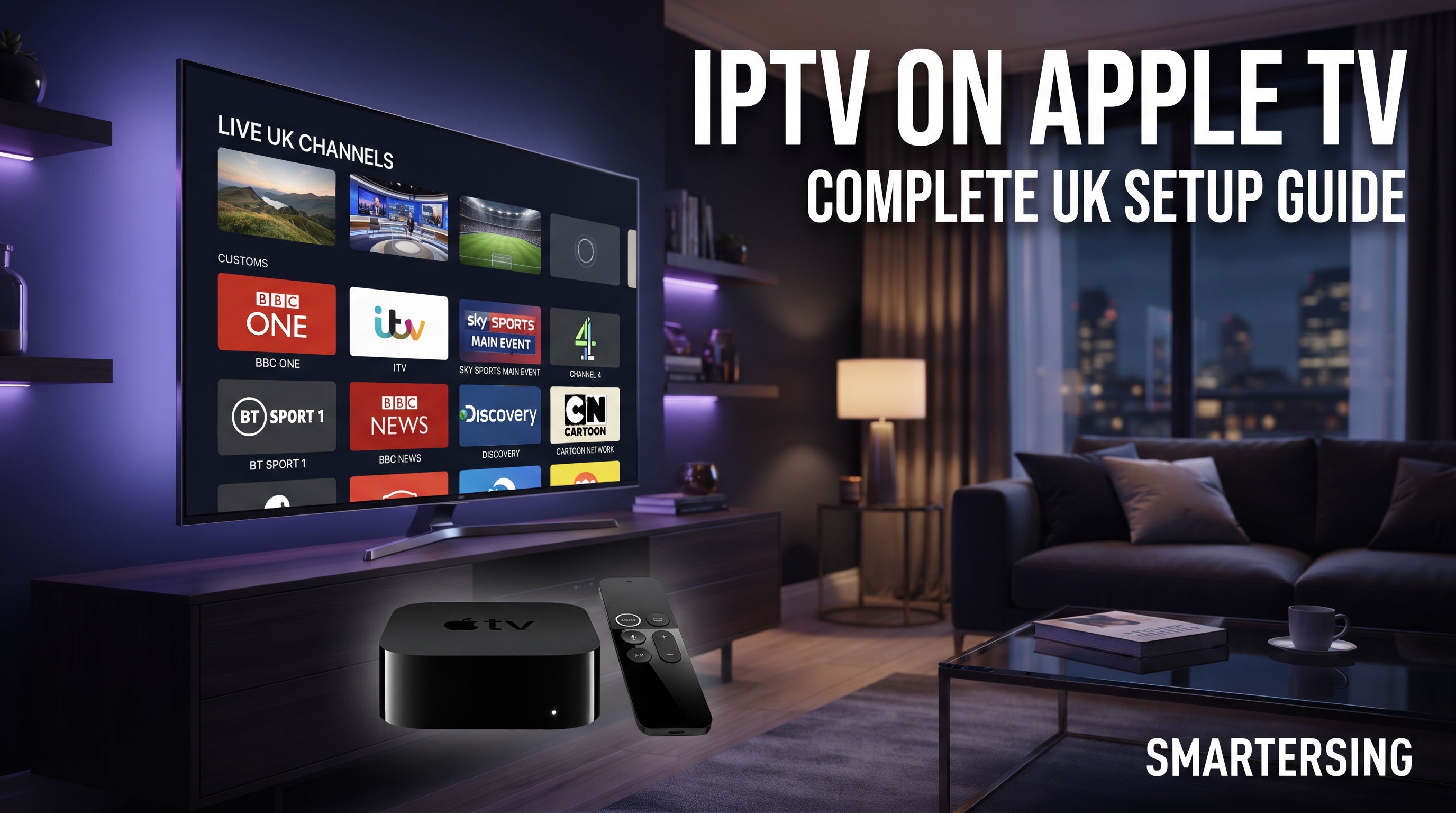
Apple TV is a popular option for viewers who want a simple, responsive way to watch streaming content on a television. If you are interested in using IPTV on Apple TV, the main thing to understand is that IPTV itself is a delivery technology. You normally need a compatible IPTV player as well as access to a legitimate service or content source that you are authorised to use.
The setup process can be straightforward once you understand how the different components work together. In this guide, we will cover the essentials of IPTV on Apple TV UK, including compatibility, player selection, setup, streaming quality, troubleshooting and practical tips for a better viewing experience.
Important: IPTV technology can be used for many different types of video services. Always use content and services that you are legally authorised to access and follow applicable copyright, licensing and broadcasting laws.
What Is IPTV on Apple TV?
IPTV stands for Internet Protocol Television. Instead of receiving television content through a traditional broadcast method, IPTV delivers video through an internet connection using IP-based networks.
On Apple TV, an IPTV setup generally involves three parts: the Apple TV device, an IPTV-compatible player and a service or playlist containing content you are authorised to watch. The player provides the interface used to organise and play the available streams.
This is different from saying that Apple TV itself provides an IPTV service. The device is the hardware platform, while the application or player and the underlying content source provide the viewing functionality.
Is Apple TV Compatible With IPTV?
Apple TV can be suitable for IPTV when you use a compatible player available for your version of tvOS and your region. App availability can change over time, so it is sensible to check the current Apple TV App Store before choosing a particular player.
Compatibility can also depend on the format used by the IPTV service. Some services may provide playlist-based access, while others may use different login or portal systems. A compatible player needs to support the method provided by the service.
What You Should Check
- Your Apple TV is connected to the internet.
- Your tvOS version is supported by the chosen player.
- The IPTV player supports the playlist or login method provided by your service.
- Your content source is legitimate and authorised for your use.
- Your internet connection is stable enough for the video quality you want to watch.
What You Need Before Setting Up IPTV
Before installing or configuring anything, prepare the basic information required by your IPTV provider or content service. This can make the setup much faster and reduce unnecessary troubleshooting.
- An Apple TV connected to your television.
- A reliable internet connection.
- A compatible IPTV player.
- Your authorised IPTV playlist, login details or supported connection information.
- Your Apple account for downloading applications where required.
It is also worth making sure your Apple TV has enough available storage for the applications you want to install and that its software is reasonably up to date.
How to Set Up IPTV on Apple TV
Step 1: Connect Apple TV
Connect your Apple TV to your television and make sure it has a stable internet connection. You can use Wi-Fi or, where supported and practical, a wired network connection through compatible networking equipment.
Step 2: Open the App Store
From the Apple TV home screen, open the App Store and search for an IPTV player that is compatible with your Apple TV and available in your region.
Before installing an application, review its current description, supported features and user feedback. Availability and features can change, so avoid assuming that every IPTV player works in exactly the same way.
Step 3: Install and Open the Player
Install the compatible player and open it from your Apple TV home screen. Depending on the application, you may see an option to add a playlist, enter account information or configure a supported content source.
Step 4: Add Your Authorised Content Source
Enter the information provided by your legitimate IPTV service. This may be a playlist URL, account credentials or another supported configuration method.
Make sure every detail is entered correctly. A single incorrect character in a login or playlist address can prevent content from loading.
Step 5: Test Playback
Once your content has loaded, test several streams. Check whether live playback starts correctly, whether the electronic programme guide or categories work where supported, and whether the picture remains stable.
Looking for a UK IPTV Option?
Explore Smartersing and learn more about compatible IPTV setups, supported devices and available options for users in the UK.
BEST IPTV UK →How to Improve IPTV Streaming Quality on Apple TV
A good Apple TV setup does not automatically guarantee perfect streaming. Playback quality depends on several factors, including your internet connection, the source quality, network congestion, device performance and the IPTV player being used.
Use a Stable Internet Connection
Stability is often more important than simply having a very high advertised download speed. If your connection regularly drops packets or experiences sudden congestion, video playback may pause even when a speed test appears fast.
Reduce Unnecessary Network Traffic
If several devices are simultaneously downloading large files, playing games or streaming high-resolution video, your network may become congested. Testing IPTV when fewer devices are active can help identify whether the network is contributing to the problem.
Keep Apple TV Updated
Keeping your device software and compatible applications updated can help maintain compatibility and performance. However, always check that your IPTV player remains compatible after major software updates.
How to Fix IPTV Buffering on Apple TV
Buffering can have several causes, so it is better to troubleshoot methodically instead of immediately assuming that the IPTV service is responsible.
- Restart Apple TV and test the stream again.
- Restart your router if other services are also experiencing connection problems.
- Test another stream to determine whether the problem affects one source or several.
- Reduce other network activity temporarily.
- Check whether your IPTV player has an available update.
- Try a different compatible player if the problem appears limited to one application.
- Check with the service provider if your account or authorised source is not loading correctly.
If only one particular stream buffers while other streams play normally, the issue may be related to that specific source. If every service on your Apple TV is struggling, investigate the local network and internet connection first.
Apple TV vs Fire TV Stick for IPTV
Apple TV and Fire TV Stick can both be useful streaming platforms, but they have different operating systems, interfaces and application ecosystems.
Apple TV is often appealing to users who already use Apple devices and prefer a polished interface with integration into the Apple ecosystem. Fire TV Stick can be attractive to users who prefer Amazon's platform and its broad range of streaming applications.
For IPTV specifically, the important factor is not simply the brand of the device. You should check the availability of a compatible player, the connection quality, supported formats and whether the service you intend to use works with that setup.
Common IPTV Problems on Apple TV
IPTV Player Does Not Load
First check your internet connection and whether the application itself is working normally. Restarting the application or Apple TV can sometimes resolve temporary issues.
Playlist or Account Information Does Not Work
Carefully check the details supplied by your service. If the credentials or playlist have expired, been changed or were entered incorrectly, the player may fail to load the available content.
Video Quality Looks Poor
Picture quality depends heavily on the original source. A modern Apple TV cannot turn a low-quality source into genuine high-resolution video. The display, source quality, connection and player all contribute to the final result.
Only Some Streams Work
If some streams work while others fail, the problem may be specific to those sources rather than your Apple TV. Test multiple authorised streams and contact the relevant provider if necessary.
How to Choose an IPTV Service for Apple TV in the UK
If you are comparing IPTV services for Apple TV, focus on practical factors rather than marketing claims. A professional service should clearly explain what it provides, how access works and which devices or players it supports.
- Device compatibility: Confirm that your Apple TV setup is supported.
- Player compatibility: Check which applications and connection methods are supported.
- Streaming stability: Look for clear information about technical requirements rather than unrealistic guarantees.
- Support: A responsive support channel can make setup and troubleshooting easier.
- Transparent pricing: Make sure the subscription terms and renewal conditions are clearly explained.
- Legal content: Only use services and content that you are authorised to access.
Want to Test Your Setup?
Contact Smartersing to ask about a premium IPTV test and check whether the setup is suitable for your compatible device.
GET FREE PREMIUM IPTV TEST →Tips for a Better Apple TV IPTV Experience
Once your setup is working, a few simple habits can help maintain a smoother experience.
- Keep your Apple TV software reasonably up to date.
- Use a stable home network whenever possible.
- Avoid unnecessary downloads while watching demanding streams.
- Keep your IPTV player updated when compatible versions are available.
- Use the video quality that matches your internet connection and display.
- Keep your authorised account or playlist information secure.
- Contact support when an issue cannot be resolved locally.
Ready to Explore IPTV on Apple TV?
Get in touch with Smartersing to learn more about compatible IPTV setups and available testing options.
24H FREE IPTV 8K TEST →Final Thoughts
Setting up IPTV on Apple TV in the UK can be simple when you have the right combination of hardware, a compatible IPTV player, a stable internet connection and an authorised content source.
The most important step is choosing a setup that matches your device and understanding that IPTV performance depends on more than the Apple TV itself. Internet stability, source quality, application compatibility and network conditions can all affect playback.
If you are comparing IPTV options, take the time to check compatibility, pricing, support and content licensing before making a decision. With the right setup, Apple TV can provide a clean and convenient platform for compatible IPTV applications and other streaming services.
Disclaimer: Smartersing provides information about IPTV technology, compatible devices and streaming setups. Users are responsible for ensuring that any IPTV service, stream, channel or other content they access is properly authorised and complies with applicable copyright, licensing and broadcasting laws. Device compatibility and application availability may change over time.