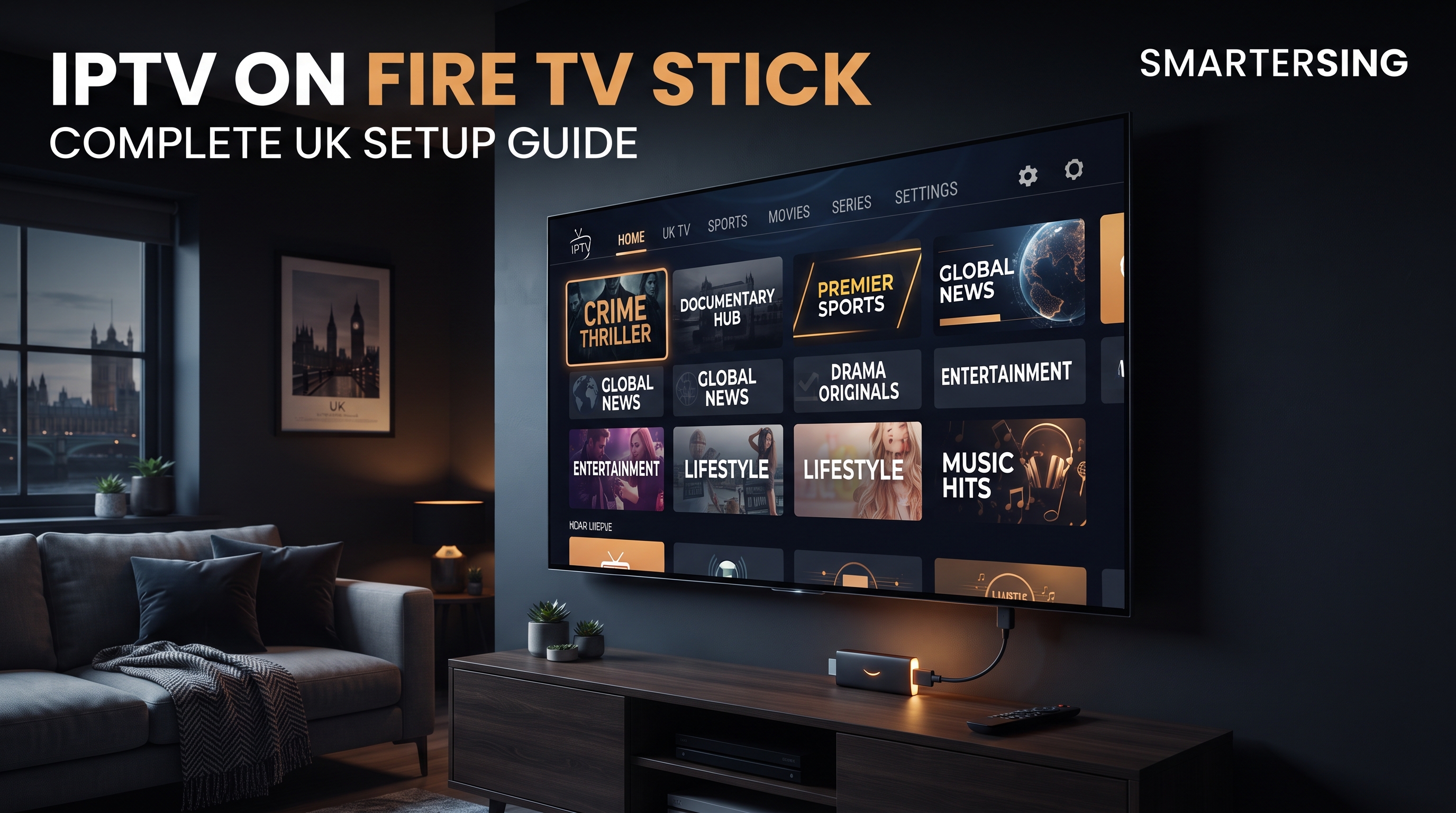
Fire TV Stick devices are popular for turning a television into a connected streaming centre. They provide access to applications, internet-based video services and a simple interface that can be controlled from the included remote.
Because the Fire TV platform supports applications designed for streaming, it can also be used with compatible IPTV players. The exact setup depends on the player, device model and authorised IPTV service being used.
In this Smartersing guide, we explain how to use IPTV on Fire TV Stick UK, what you need before starting, how to complete the basic setup and what to check when playback is not working as expected.
Looking for a UK IPTV option?
Explore the available Smartersing plans and review the options for compatible Fire TV Stick streaming setups.
BEST IPTV UK →What Is IPTV on Fire TV Stick?
IPTV stands for Internet Protocol Television. It refers to delivering television or video content through internet protocol networks instead of relying solely on traditional broadcast or cable distribution.
A Fire TV Stick does not automatically provide IPTV content. Instead, a compatible IPTV player can act as the application through which a user connects to an IPTV service or other authorised content source.
This distinction is important. The application is a playback and organisation tool, while the actual content is supplied by the connected service. Users should only access content they are authorised or licensed to watch.
What You Need for IPTV on Fire TV Stick
Before setting up IPTV, make sure you have the basic equipment and information required for a smooth installation.
- Compatible Fire TV Stick: Make sure your device is working correctly and has sufficient available storage.
- Internet connection: A stable connection is essential for streaming.
- Compatible IPTV player: Use an application that supports your Fire TV platform.
- Authorised IPTV service: You need valid service or playlist information.
- Amazon account: Your Fire TV device normally requires an account for managing applications and device settings.
How to Set Up IPTV on Fire TV Stick
The exact application and menu names can change over time, but the general process remains straightforward.
Step 1: Connect Your Fire TV Stick
Connect the Fire TV Stick to an available HDMI port on your television and complete the initial device setup. Connect it to your home Wi-Fi network and make sure the internet connection is working.
Step 2: Check for Device Updates
Before installing additional applications, check whether your Fire TV Stick has a pending system update. Keeping the device current can help with compatibility and stability.
Step 3: Choose a Compatible IPTV Player
Select an IPTV player that is currently compatible with your Fire TV device. Application availability can change, so always check the current information provided through the appropriate application source.
Step 4: Install the IPTV Player
Install the compatible player and open it after installation. Depending on the application, you may be asked to choose a playlist, login method or account connection.
Step 5: Enter Your Authorised Service Details
Enter the login, playlist or connection information supplied by your authorised IPTV provider. Check every field carefully before connecting.
Step 6: Test Playback
Once the service information has loaded, test several authorised streams. Check navigation, loading speed and playback stability before changing other settings.
Important: IPTV is a technology for delivering video over IP networks. Only access content you are authorised or licensed to use, and comply with applicable UK copyright, licensing and broadcasting laws.
How to Improve IPTV Quality on Fire TV Stick
The quality of your IPTV experience is influenced by more than the Fire TV Stick itself. Your network, content source, player and television can all affect playback.
Use a Reliable Wi-Fi Connection
Position your router and Fire TV Stick so that the wireless signal is as stable as possible. Physical obstacles and network congestion can reduce performance.
Consider an Ethernet Connection
Depending on your equipment and network setup, a compatible Ethernet adapter can provide a wired connection. This can be useful when Wi-Fi performance is inconsistent.
Restart Your Devices
Restarting the Fire TV Stick and router can clear temporary connection problems and is one of the simplest troubleshooting steps to try.
Keep Enough Storage Available
A device with very limited storage can become harder to manage. Remove applications you no longer use and keep the Fire TV environment organised.
Keep Applications Updated
If your IPTV player has an available update from its supported source, keeping it updated can help maintain compatibility and stability.
How to Fix IPTV Buffering on Fire TV Stick
Buffering can have several causes. It is useful to identify whether the issue affects one stream, one application or your entire internet connection.
Test Another Streaming Application
Open another legitimate streaming service on the Fire TV Stick. If it also struggles to load, investigate the internet connection first.
Test Another Authorised Stream
If other streams work normally, the problem may be related to the particular content source rather than your Fire TV Stick.
Restart the Router
Restart your home router and allow the connection to stabilise before testing playback again.
Move the Fire TV Stick or Router
If the wireless signal is weak, changing the position of the router or using a suitable HDMI extension can sometimes improve the network environment around the Fire TV Stick.
Check Your IPTV Player
If your authorised service supports another compatible player, testing it can help determine whether the application itself is causing the playback problem.
Want to test your Fire TV Stick setup?
Contact Smartersing through WhatsApp to ask about the available test option and check compatibility with your Fire TV Stick.
GET FREE PREMIUM IPTV TEST →Fire TV Stick Models and IPTV Compatibility
Not every Fire TV Stick generation has exactly the same hardware performance. Newer models can offer different processing capabilities, storage and connectivity features.
For IPTV playback, the most important factors are application compatibility, available resources and network stability. A compatible player should be tested on the exact Fire TV device you plan to use.
If you are buying a new streaming device specifically for IPTV, consider the application's current compatibility requirements rather than choosing solely based on marketing specifications.
Fire TV Stick vs Smart TV for IPTV
Both approaches can work well, but they offer different advantages.
A Smart TV can provide a simple all-in-one solution when a compatible IPTV player is available. You do not necessarily need another device connected to the television.
A Fire TV Stick can offer more flexibility because applications are managed through the Fire TV platform. It can also be moved between compatible televisions relatively easily.
The better choice depends on your television, preferred applications, network setup and how much flexibility you want from your streaming equipment.
Common IPTV Problems on Fire TV Stick
If your IPTV setup is not working correctly, check the following common issues:
- IPTV player unavailable: The application may not currently support your Fire TV device.
- Incorrect login details: Carefully check the service information supplied to you.
- Buffering: Test your internet connection and other streaming applications.
- Slow loading: Restart the Fire TV Stick and router.
- Application crashes: Check available storage and application updates.
- Playback issues: Test another compatible player if supported by your authorised service.
How to Choose the Best IPTV for Firestick UK
When searching for the best IPTV for Firestick UK, compatibility should be one of your first considerations.
Check whether the service provides clear Fire TV Stick setup information, whether support is available when needed and whether you can test the setup before committing to a longer subscription.
You should also consider the reliability of the connection, the applications you prefer and whether the service clearly explains how to use its authorised content.
Avoid choosing a service based only on large channel numbers or unrealistic promises. The actual viewing experience depends on the source, network, device, player and other technical factors.
Ready to explore Smartersing?
Review the available UK plans and find an option for your compatible Fire TV Stick streaming setup.
24H FREE IPTV 8K TEST →Final Thoughts
Setting up IPTV on Fire TV Stick UK can be a convenient option for viewers who want to use internet-based television and video services through a compact streaming device.
The most important steps are to confirm device compatibility, install a suitable IPTV player, use valid authorised service information and make sure your internet connection is stable.
If you experience buffering or playback problems, troubleshoot the setup methodically. Check your network, restart your devices, test other applications and review the player configuration before assuming the Fire TV Stick itself is the problem.
With compatible equipment, a reliable connection and properly authorised content, Fire TV Stick can provide a straightforward platform for a modern home streaming setup.
Legal & content notice: Smartersing provides information about IPTV technology, compatible devices and streaming setups. Users are responsible for ensuring that any content they access is properly authorised and complies with applicable UK copyright, licensing and broadcasting laws. Stream quality and availability can vary depending on the content source, device, application and internet connection.