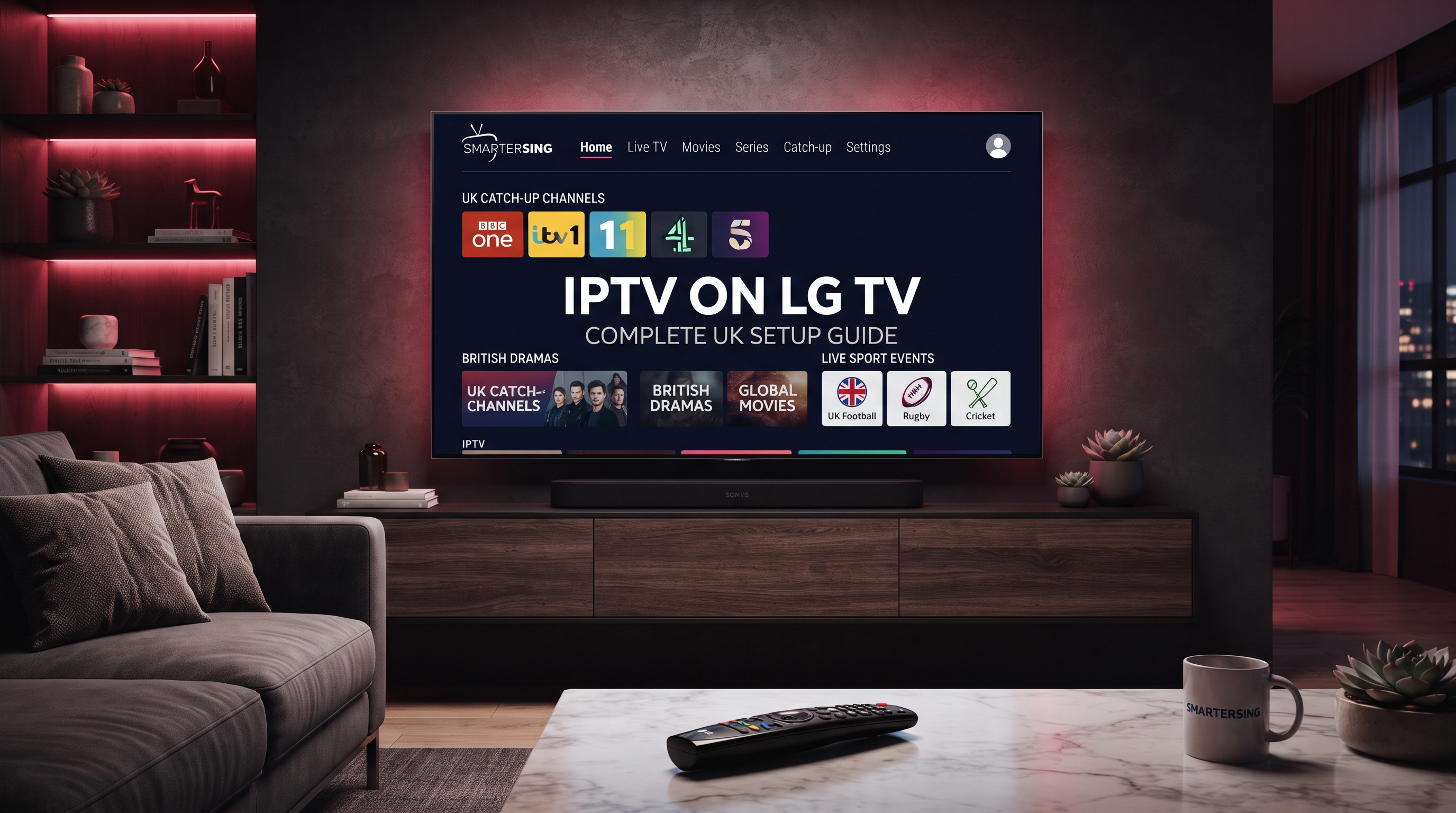
LG Smart TVs are a popular choice for home entertainment in the UK, offering a convenient way to access streaming applications directly from the television. If you want to use IPTV on an LG TV, the setup can be straightforward when your TV, IPTV player and content source are compatible.
The important point is that IPTV is a delivery technology, not a television channel provider by itself. You generally need a compatible IPTV player and an authorised content source or service. In this guide, we will explain the main steps involved in setting up IPTV on LG TV, along with practical advice for compatibility, playback quality and troubleshooting.
Important: Always use IPTV services and content that you are legally authorised to access. Follow applicable copyright, licensing and broadcasting laws in your country.
What Is IPTV on LG TV?
IPTV stands for Internet Protocol Television. It describes the delivery of television or video content through IP networks rather than relying exclusively on traditional broadcast distribution.
When IPTV is used on an LG Smart TV, the television acts as the platform for a compatible IPTV application. The application can then connect to an authorised playlist, account or other supported content source and provide an interface for viewing the available streams.
This means that buying an LG TV does not automatically provide IPTV channels. The television provides the hardware and operating environment, while the application and content source determine what can actually be accessed.
Is LG TV Compatible With IPTV?
Many LG Smart TVs can be used with IPTV applications, but compatibility depends on the TV's operating system, model, region and the IPTV player you want to use.
LG televisions use the webOS platform, and application availability can vary depending on the model and region. Before choosing a specific IPTV player, check the current LG Content Store and confirm that the application supports your television.
Things to Check Before Setup
- Your LG TV is connected to a stable internet connection.
- Your TV model supports the IPTV player you want to use.
- The application is available for your region.
- Your IPTV service supports the connection method used by the player.
- Your content source is legitimate and authorised for your use.
What You Need to Set Up IPTV on LG TV
Preparing the necessary information before starting can make the installation process much easier. The exact requirements depend on the IPTV application and service you choose.
- An LG Smart TV with a compatible operating system.
- A stable internet connection.
- A compatible IPTV player available on the TV.
- An authorised IPTV playlist, account or supported connection details.
- Your login or playlist information supplied by the legitimate service.
You should also make sure that your LG TV software is reasonably up to date and that the television can access the LG Content Store.
How to Set Up IPTV on LG TV
Step 1: Connect Your LG TV to the Internet
Start by connecting your LG Smart TV to your home network. You can normally use Wi-Fi, while some models and network setups may also support a wired Ethernet connection.
A stable connection is particularly important if you intend to watch higher-quality video streams. If possible, position your router where the TV can receive a strong and consistent signal.
Step 2: Open the LG Content Store
From your LG TV's home screen, open the application store and search for a compatible IPTV player. Application names and availability can change, so always check the current store rather than relying on outdated installation instructions.
Step 3: Install a Compatible IPTV Player
Select a player that supports your LG TV and install it. Review the application's available features and compatibility information before continuing with the setup.
Step 4: Add Your Authorised IPTV Details
Open the IPTV player and follow its instructions for adding your authorised content source. Depending on the application, you may need to enter account credentials, a playlist address or another supported configuration.
Enter the information carefully. Incorrect login details or an outdated playlist can prevent the application from loading the available content.
Step 5: Test Your Streams
Once the content has loaded, test several available streams. Check whether playback starts correctly and whether the picture remains stable during normal viewing.
Looking for a UK IPTV Option?
Explore Smartersing and learn more about compatible IPTV setups, supported devices and available options for users in the UK.
BEST IPTV UK →How to Improve IPTV Quality on LG TV
The quality of IPTV playback depends on more than the television itself. Your internet connection, content source, network traffic, player and display can all influence the final viewing experience.
Use a Stable Internet Connection
A stable connection helps reduce interruptions during playback. Even a fast connection can experience problems if there are frequent drops, interference or heavy congestion.
Check Your Wi-Fi Signal
If your LG TV is far from the router, walls and other obstacles can affect Wi-Fi performance. Moving the router or reducing the distance between the TV and router can sometimes improve consistency.
Limit Heavy Network Usage
Multiple devices streaming high-resolution video, downloading large files or performing other demanding tasks can place additional load on your home network. Testing IPTV while other activity is reduced can help identify whether congestion is involved.
Match Quality to Your Connection
Higher-resolution streams require more data. Choose a quality level appropriate for your connection and remember that an LG TV cannot create detail that was not present in the original video source.
How to Fix IPTV Buffering on LG TV
Buffering can have several different causes. The best approach is to check the problem step by step instead of immediately assuming that one component is responsible.
- Restart the LG TV and test playback again.
- Restart your router if other devices are also having connection issues.
- Test a different stream to see whether the problem affects one source or many.
- Reduce heavy internet activity on other devices.
- Check whether the IPTV player has an available update.
- Check your authorised account or playlist information.
- Contact the relevant service provider if the source is unavailable or your account requires assistance.
If one stream buffers while others play normally, the issue may be specific to that source. If multiple services and applications are experiencing slow performance, investigate the local network and internet connection first.
Does IPTV Work on Every LG Smart TV?
Not necessarily. LG has released many Smart TV models and generations, and application compatibility can differ between them.
Older televisions may have different software capabilities from newer models, while application availability can also depend on region. For this reason, it is better to check your exact LG TV model and the current application requirements before choosing an IPTV player.
Newer LG Smart TVs
Newer models generally provide access to a modern application environment and may support a wider selection of current streaming applications. However, individual app compatibility still needs to be checked.
Older LG Smart TVs
Older models can have more limited application support. If your preferred IPTV player is not available, an external streaming device may provide another compatible platform.
LG Smart TV vs Fire TV Stick for IPTV
Using IPTV directly on an LG Smart TV can be convenient because you do not necessarily need an additional streaming device. Everything can be managed from the television's own interface when a compatible application is available.
A Fire TV Stick, on the other hand, provides a separate operating environment and can be useful if your LG television does not support the IPTV application you prefer.
The best choice depends on your specific TV, the available applications, your preferred interface and the requirements of the authorised IPTV service you intend to use.
Common IPTV Problems on LG TV
IPTV App Is Not Available
Application availability can depend on the LG TV model, operating system and region. Check the current LG Content Store and confirm that the application is compatible with your television.
Playlist Will Not Load
Check that the playlist or account information has been entered correctly and has not expired. If the details are correct but the content still does not load, contact the relevant authorised provider.
Playback Keeps Stopping
Test another stream and check your internet connection. If several applications are also experiencing interruptions, investigate the network rather than focusing only on the IPTV player.
Picture Quality Is Poor
The original video source has a major influence on image quality. A high-resolution LG television cannot transform a low-quality source into genuine 4K or higher-resolution content.
How to Choose IPTV for LG TV in the UK
When comparing IPTV services for LG TV, look beyond simple marketing claims. A good setup should provide clear information about compatibility, pricing, support and how authorised access works.
- LG compatibility: Confirm that your specific TV and player are supported.
- Application support: Check which IPTV players and connection methods are available.
- Streaming requirements: Make sure your home network can handle the quality you intend to use.
- Customer support: Helpful support can make setup and troubleshooting easier.
- Transparent pricing: Review subscription terms and renewal information before purchasing.
- Authorised content: Use only services and content you are legally permitted to access.
Want to Test Your Setup?
Contact Smartersing to ask about a premium IPTV test and check whether the setup is suitable for your compatible device.
GET FREE PREMIUM IPTV TEST →Tips for a Better LG TV IPTV Experience
Once your setup is working, a few simple practices can help keep the experience consistent.
- Keep your LG TV software reasonably up to date.
- Use a stable home internet connection.
- Keep the IPTV player updated where compatible updates are available.
- Avoid unnecessary heavy downloads while watching demanding streams.
- Use video quality appropriate for your network.
- Keep your authorised account information secure.
- Test different streams when troubleshooting playback issues.
Ready to Explore IPTV on LG TV?
Get in touch with Smartersing to learn more about compatible IPTV setups and available testing options.
24H FREE IPTV 8K TEST →Final Thoughts
Setting up IPTV on an LG TV in the UK can be a convenient way to use compatible streaming applications directly on your television. The key is making sure that your LG model, IPTV player, network connection and authorised content source all work together.
If you experience buffering or playback problems, troubleshoot each part of the setup separately. Check the internet connection, test different streams, review the application and verify your account or playlist information.
Whether you use IPTV directly through an LG Smart TV or choose an external streaming device, taking the time to confirm compatibility and content authorisation will help you build a more reliable setup.
Disclaimer: Smartersing provides information about IPTV technology, compatible devices and streaming setups. Users are responsible for ensuring that any IPTV service, stream, channel or other content they access is properly authorised and complies with applicable copyright, licensing and broadcasting laws. Device compatibility and application availability may change over time.